
Does the theory that you can just plug into any Blink charger and go actually hold? You’ll need the app, a compatible connector, and a quick safety check before energizing. You must verify station ID, pricing, availability, and limits, then authenticate by app, RFID, or Guest Pay. You’ll also confirm charging started, avoid idle fees, and unplug correctly. Miss a step and risk faults—or worse. Here’s how to get it right every time.
Key Takeaways
- Find stations in the Blink app, filter for availability and pricing, verify the station ID and tariff, and check session caps and time‑of‑use rates.
- Confirm connector compatibility (J1772 Level 2, CCS/CHAdeMO/NACS for DC); bring needed adapters; inspect cables and ports for damage or moisture.
- Start a session via app, Blink RFID, or Guest Pay QR; seat the connector fully and confirm both vehicle and station show live kW charging.
- For fastest charging, arrive 10–40% SOC, precondition the battery, avoid DC fast when cold or near full, and monitor kW for taper or sharing.
- Stop charging in the app or with your card; unlock and stow the connector, avoid idle fees, report faults in‑app, and follow on‑site safety etiquette.
What You Need Before You Charge
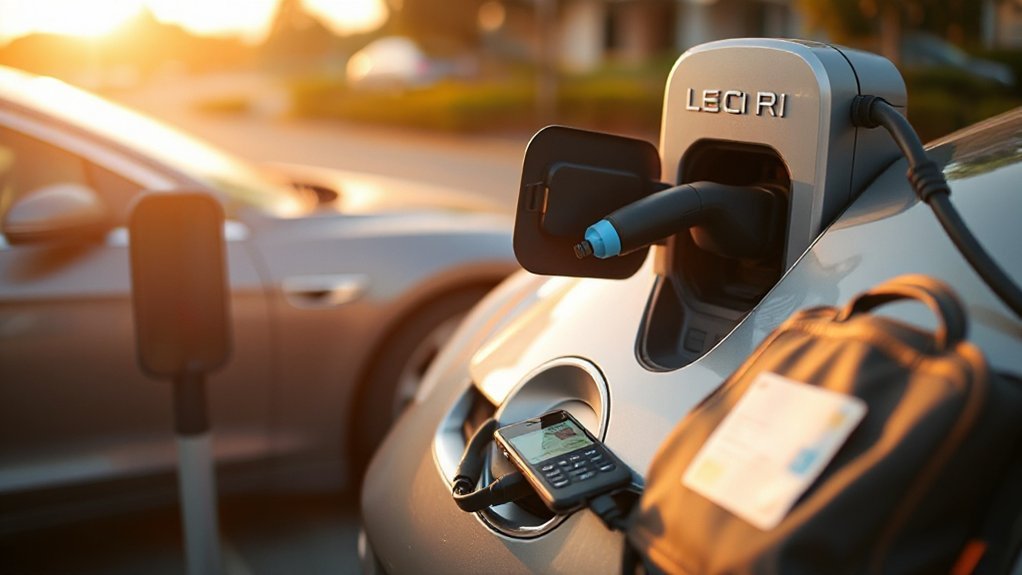
Before you plug in, confirm your vehicle matches the station type (Level 2 J1772 or DC fast CCS/CHAdeMO) and bring any required adapter (e.g., Tesla-to-J1772/CCS). Verify you have a functional payment method (Blink RFID card or enabled credit card), your vehicle key, and the port unlatched. Inspect the connector and cable for cracks, exposed conductors, or heat damage; don’t use a compromised unit. Park squarely, set the parking brake, and turn off high-draw accessories. Set a charge limit and max current appropriate for the station and your battery’s temperature. Precondition if recommended. Keep insurance info, registration, and an emergency kit accessible. Position cones or hazard lights if you must stop roadside. Have gloves, wipes, and a flashlight for safe handling. Confirm fire extinguisher location.
Finding a Blink Charger With the App
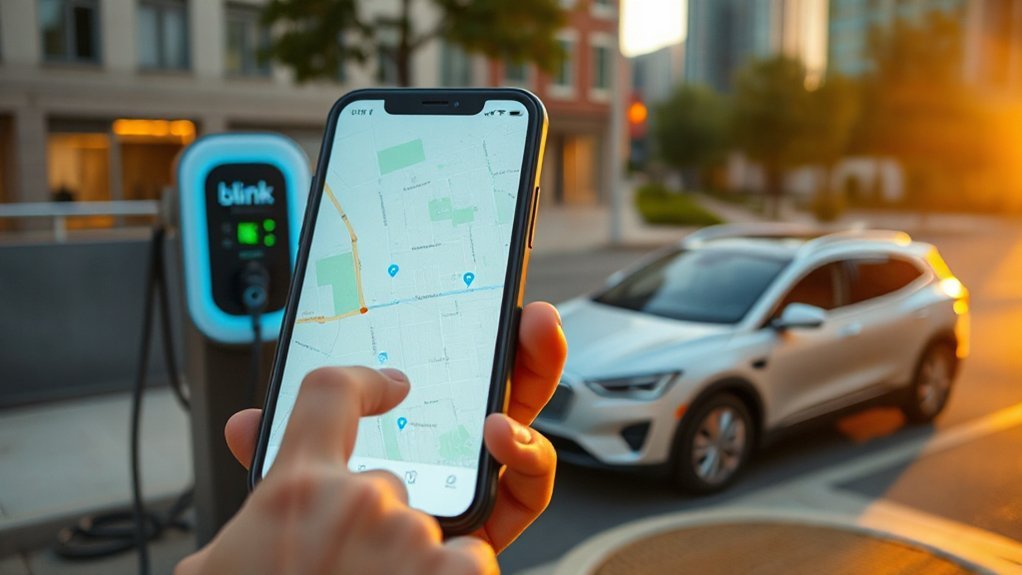
How do you quickly locate a compatible, safe Blink station? Open the Blink app, enable location services, and sign in. Tap Map to view live station data. Apply map filters to show only operational, available units, pricing you accept, and access hours. Select a site to review uptime, lighting, and site amenities. Use route integration to add stops along your trip and lock in realistic arrival times.
Locate compatible, safe Blink chargers quickly with app maps, filters, and route planning.
- Toggle Availability and Pricing filters to avoid offline units and unexpected fees.
- Check Station Details for lighting, security cameras, and access times before you navigate.
- Use Start/Reserve to hold a port where supported, preventing detours.
When you arrive, verify the station ID in-app matches the pedestal label before activating. Report faults via the app.
Connector Types and Power Levels: Level 2 vs. DC Fast
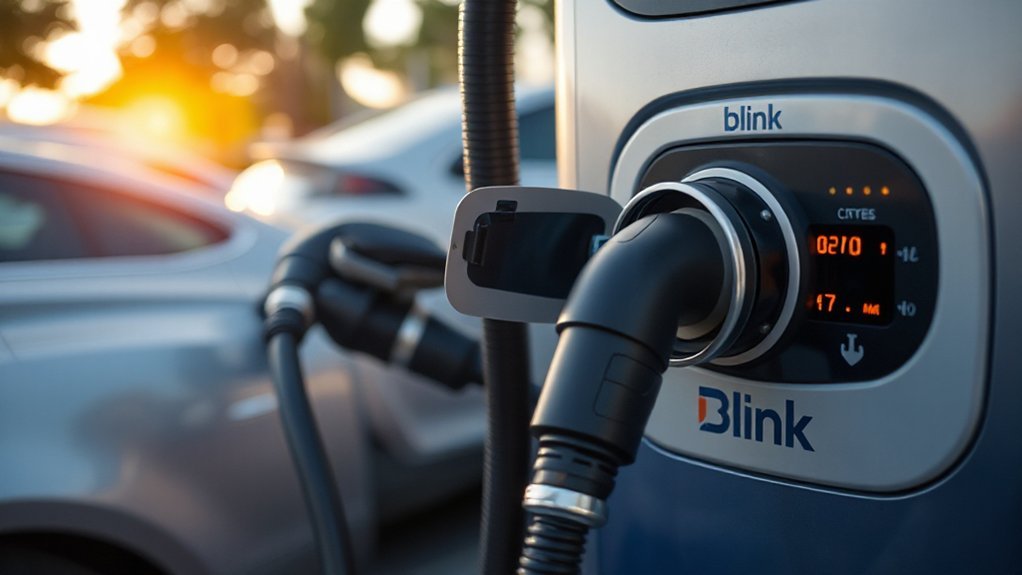
You’ll select the correct connector standard—J1772 for Level 2 AC, and CCS1, CHAdeMO, or NACS for DC fast—based on your vehicle’s inlet. Level 2 typically supplies 6–19 kW for steady charging, while DC fast delivers 50–350 kW for rapid sessions constrained by your car’s max acceptance and state of charge. For safety, confirm connector fit and cable condition, set charging limits in-app, and avoid DC fast charging if the battery is cold or near full.
Common Connector Standards
Most Blink stations support a few common connector standards, each tied to specific power levels and charging speeds. You’ll typically see J1772 (Level 2 AC), CCS (DC), CHAdeMO (DC), and increasingly NACS. Due to Regional variations, you may encounter CCS1 in North America and CCS2 in Europe; verify plug geometry before you cue a session. Check that labels show applicable Safety certifications (e.g., UL, ETL, CE) and the connector’s rated current and voltage.
- J1772: Level 2 AC; lockable latch; use your vehicle’s adapter if needed for NACS ports.
- CCS: Combined AC/DC inlet on vehicle; select CCS handle only on DC-capable stations.
- CHAdeMO/NACS: Confirm vehicle port type; secure strain relief; don’t force misaligned pins.
Inspect for damage or moisture; stop, report defects.
Charging Speed Differences
Connector choice directly affects charging speed: Level 2 AC (J1772 or NACS via adapter) uses your vehicle’s onboard charger and typically delivers about 3.3–19.2 kW, while DC fast charging (CCS, CHAdeMO, or NACS DC) bypasses it and can supply roughly 50–350 kW if both station and vehicle support it. Your actual rate depends on your car’s max AC/DC acceptance, Battery Chemistry, Thermal Management, state of charge, and temperature. For fastest sessions, arrive with 10–40% SOC, precondition the pack, and prefer higher voltage/current-capable connectors your vehicle supports. On DC, expect tapering above ~60–80% to protect cells. Verify cable amperage and station power; shared cabinets may reduce output. Inspect plugs, seat firmly, and avoid extension cords. Stop if you see overheating warnings or unusual burning odor.
Pricing, Session Limits, and Idle Fees
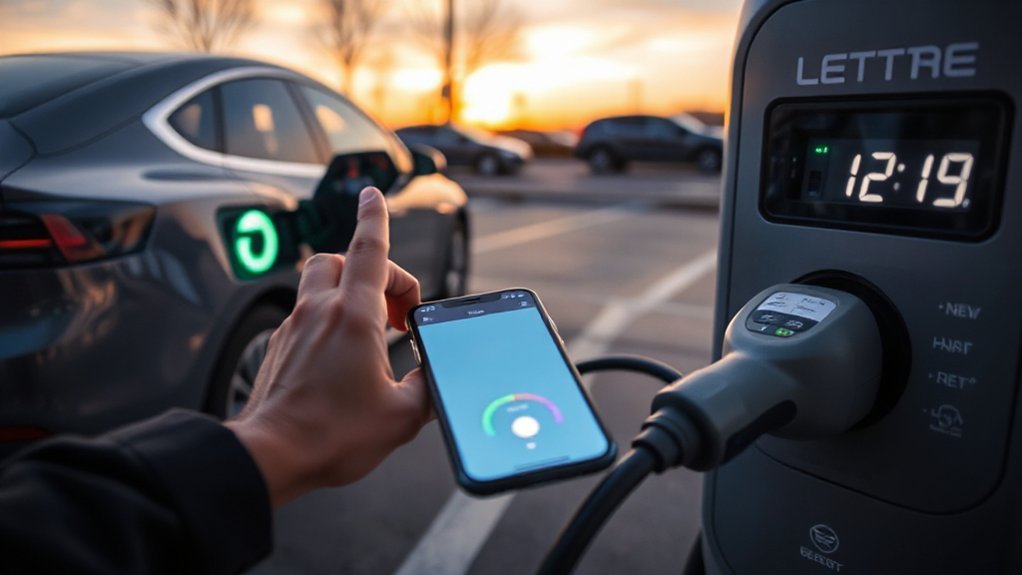
You should compare Blink membership vs. guest rates, as pricing can vary by kWh, minute, or session and affect your cost per charge. Verify station-specific session time caps to prevent automatic cutoff and plan your SOC targets accordingly. Review idle fee policies and move your vehicle promptly at charge completion to avoid penalties and keep bays clear for safe, efficient turnover.
Membership Vs Guest Rates


While membership isn’t required, choosing a Blink plan directly affects your per‑kWh or per‑minute price, session length, and exposure to idle fees. Members typically pay reduced energy or time rates, benefit from Loyalty incentives, and see clearer billing in the app. Guests pay higher base rates and may trigger idle fees sooner if you leave the cable connected after charging stops. Corporate accounts enable negotiated tariffs and consolidated invoicing, useful for fleets and duty‑cycle planning. Always check the station’s posted tariff before initiating.
- Member: lower rates, RFID/app authentication, predictable taxes and fees.
- Guest: card-on-file authorization holds, higher pricing, limited receipts.
- Corporate: pooled access, driver PINs, exportable logs for audits.
Disconnect promptly to avoid penalties and bay blocking. Verify connector condition and follow on-screen prompts.
Session Time Caps
Because session time caps vary by charger class and tariff, confirm how Blink applies pricing, stop conditions, and idle fees before you plug in. Review the station page in the Blink app and the on-unit display for policy transparency. Caps may be defined by minutes, kWh, or dollar ceiling; the system enforces the first limit reached. Expect preauthorization holds and automatic termination at the cap.
| Parameter | What to check |
|---|---|
| Cap type | Minutes, kWh, or cost threshold |
| Stop behavior | Auto-stop, grace time, restart rules |
| Fees | Over-cap or idle fee triggers |
Understand enforcement mechanisms: auto-stop, restart cooldowns, and account lockouts for repeated overages. Some sites disallow back-to-back sessions. Don’t rely on caps to prevent battery overheating; monitor SOC and connector temperature, and stop early if needed.
Idle Fee Policies
After charging completes or a session hits its cap, many Blink stations begin idle fees that accrue until you unplug and clear the space. Idle pricing is set per minute; check the app or station screen before you start. Sites may define grace periods and tiered rates to discourage blocking. For regulatory compliance, hosts must disclose fees and session limits; you should verify postings. To avoid charges, stop the session in-app, unplug safely, and move promptly. Property owners use revenue allocation rules to split idle collections between network, site host, and operations.
- Confirm the session cap, grace window, and per-minute idle rate.
- Enable push alerts so you’re notified at SOC and cap.
- Park so cable strain is minimized when you depart.
Starting a Session: App, RFID Card, or Guest Pay
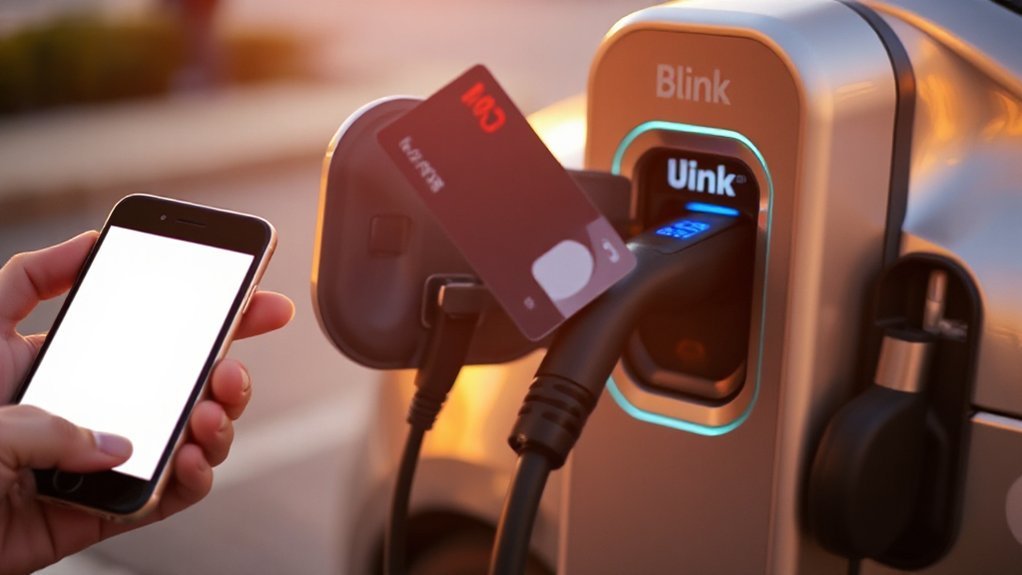
How do you start a Blink charging session—app, RFID card, or Guest Pay? With the app, confirm site availability, fees, and connector type, then tap Start, select the port, and authenticate. Verify Payment security in your account and review Privacy settings before enabling Auto-Start. For RFID, activate the card in the app, hold it to the reader until you hear a beep, then select the port on-screen. For Guest Pay, scan the QR code, open the secure web page, enter card details, accept pricing, and start.
Before initiating power, park, set the brake, and inspect the connector, cable, and port for cracks or frays. Don’t use damaged equipment. Match connector standard to your vehicle. Keep cable off traffic paths to reduce potential trip hazards.
Stopping a Session and Unplugging Safely
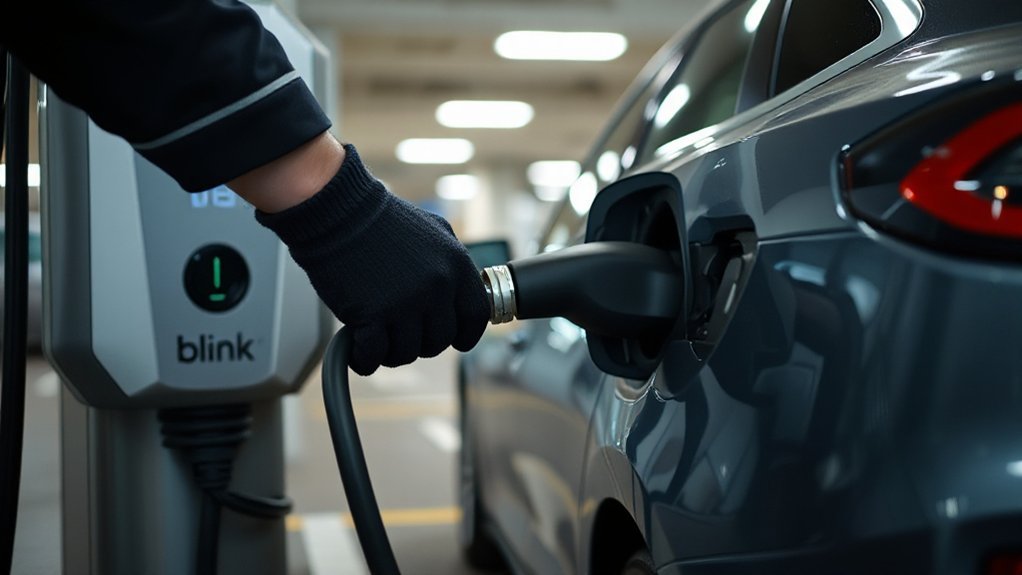
Once charging completes or you need to leave, stop the session using the same method you started—app, RFID card, Guest Pay web page, or the station screen—and confirm both the station and your vehicle show Charging Stopped. Verify the cable latch has released before touching the handle. Initiate the disconnect sequence: stop power, release connector via the vehicle or station, then pull straight out without twisting.
When charging ends, stop, confirm Charging Stopped, release latch, then pull straight out.
- Wait for indicators to show ready before removing the connector.
- Keep your finger off the trigger until you’re ready to withdraw.
- Stand clear of traffic while managing the cable.
If the connector feels hot, wait and report via the app. Perform a post charge inspection: check for damaged pins, debris, or frayed jackets. Close the port and vacate.
Tips to Charge Faster and Save Money
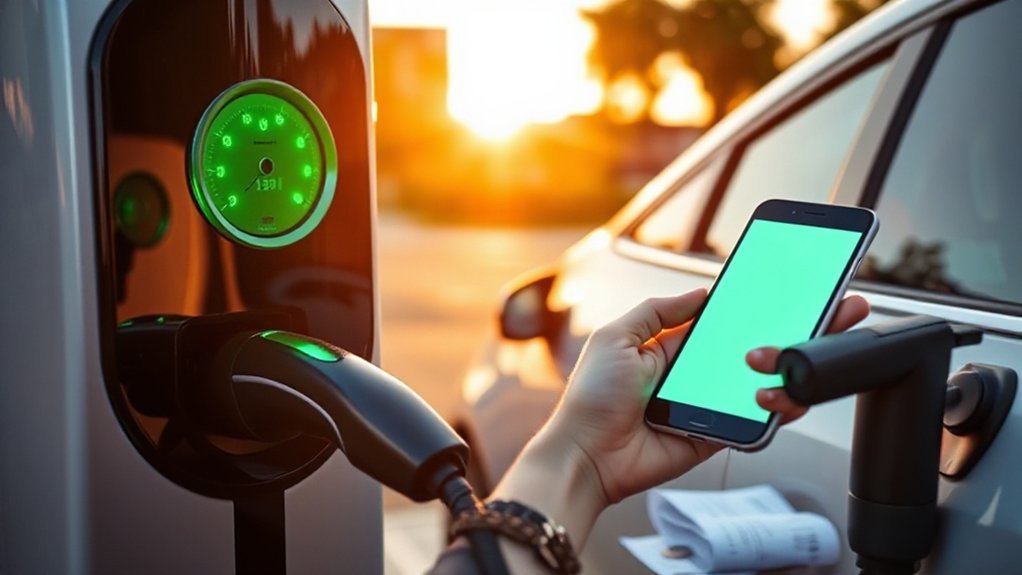
Optimize your session by matching your vehicle’s charge capability to the station and timing your stop to avoid price spikes. Confirm your car’s max AC/DC rate in the Blink app, then select Level 2 or DC fast accordingly. Begin DC fast charging between 10–40% state of charge; stop near 80% to bypass taper and idle fees. Enable Battery Conditioning via your vehicle’s navigation so the pack reaches target temperature on arrival. In heat, allow brief cooldown; in cold, preheat to prevent throttling. Check time-of-use pricing and choose off-peak windows. Favor sites with Solar Integration or promotional rates. Seat the connector fully, verify lock, and monitor live kW. If power falls, move to a right-sized unit to restore efficiency. Reduce stops through route-aware smart planning.
Charging Etiquette and Site Best Practices
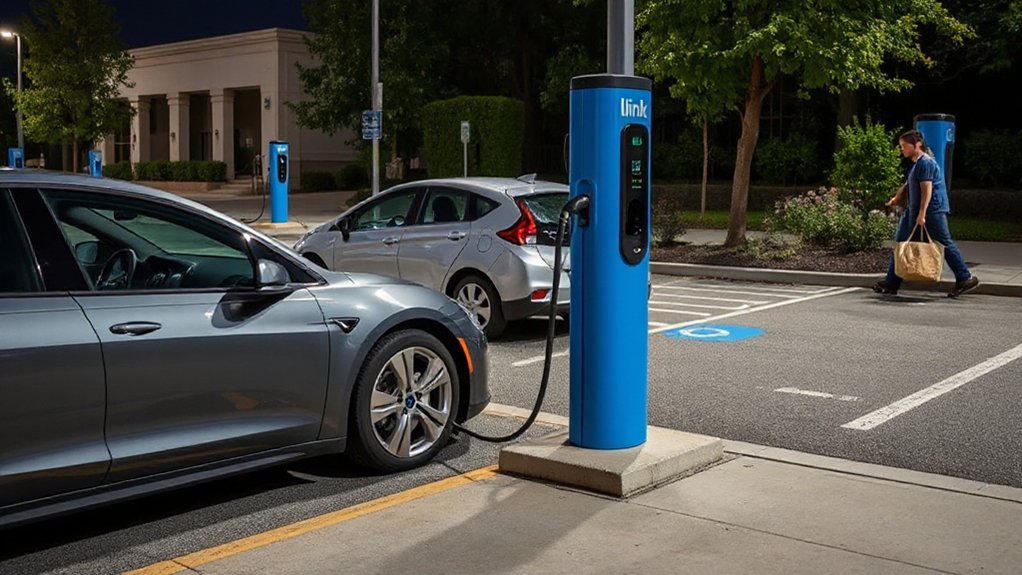
While charging at Blink stations, follow clear etiquette to keep sites safe and efficient: park fully within the lines, avoid blocking traffic or fire lanes, and leave ADA-accessible stalls for those with permits. Queue fairly, plug in once parked, and set a departure reminder to move promptly at target SOC. Manage the cable to prevent tripping hazards and connector damage; coil slack on the holder. Maintain stall cleanliness and report hazards to the site host. Practice neighbor courtesy: communicate ETA in-app and don’t unplug active sessions.
- Share the space: stop at planned SOC, then vacate the stall within five minutes.
- Protect equipment: dock connectors, avoid running cables under the vehicle, and keep ports dry.
- Be power-aware: avoid idling, respect time limits, and mute alarms.
Troubleshooting Common Errors and Getting Support
If a Blink charger shows an error or won’t start, treat it as a safety condition first: stop the session, keep the area clear, and don’t force the connector. Verify your vehicle is in Park, doors locked if required, and the inlet free of debris. Check the station’s screen for error codes; photograph them. During Network outages, activate charging with your RFID card or the app’s Bluetooth fallback, if supported. Confirm funds; update expired cards. If you can’t log in, start Account recovery. Power-cycle: end session, unplug, wait 60 seconds, then reinsert until latched. Don’t use damaged or overheated connectors. Contact Blink Support with station ID, location, time, app version, and photos. Request a reboot only from authorized site personnel. Move if faults persist.
Conclusion
You’ve got the workflow: find a Blink station, verify availability, price, and station ID, then park precisely, set limits, and set the parking brake. Inspect ports for moisture or damage, authenticate via app, RFID, or Guest Pay, plug, and verify charging and kW. Monitor conditioning, stop the session cleanly, stow the cable, and swiftly vacate to sidestep idle fees. Practice polite and prudent charging: check, connect, confirm, charge, conclude, and communicate faults for safer sessions.