You’re using a modern EV charger and the screen looks dense with icons, numbers, and options. You’ll want to know what each status, price line, and metric means and how to act on it. I’ll walk you through the key indicators and controls—starting with the basic status symbols.
Key Takeaways
- Read status lights first: solid blue = connected, pulsing blue = scheduled, flashing green = charging, solid green = complete, flashing red = error.
- Check session metrics: state of charge, time remaining, energy delivered (kWh) and instantaneous charging rate (kW) for progress and cost calculations.
- Confirm connector and handshake: display shows active standard (CCS, CHAdeMO), negotiated DC voltage and current, or AC phase and amperage.
- Use on-screen controls or app/NFC to start, pause, stop, view pricing, receipts, and accessibility options like large text or voice guidance.
- Leverage smart features: scheduled/ off-peak charging, real-time pricing, predictive rate estimates, OTA updates, and remote session management.
Common Display Types, Sizes and What to Expect
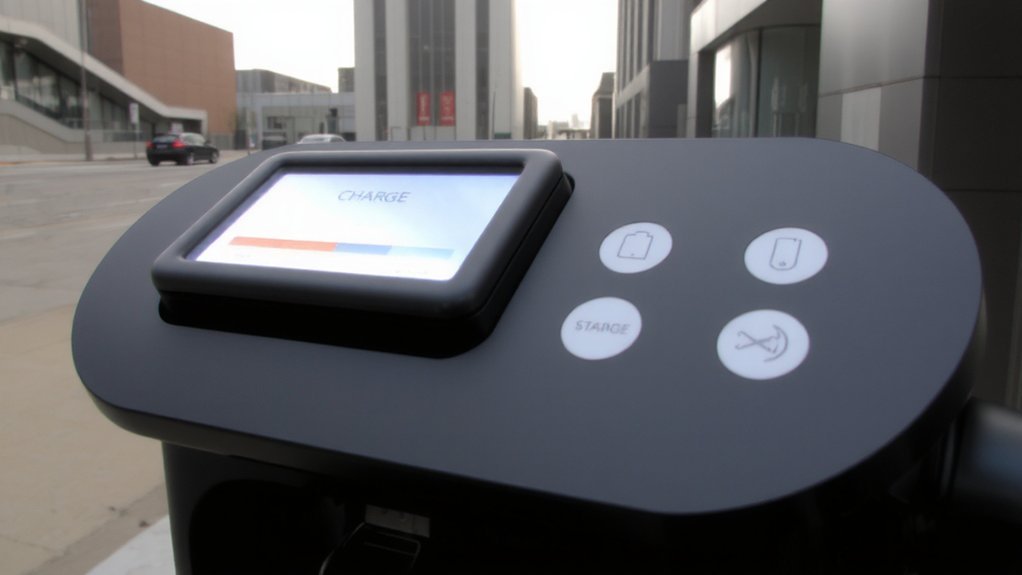
Although the exact screen you see will depend on the model and location, most EV chargers use a few predictable display types and sizes you’ll quickly learn to read. For public stations, expect a user-friendly touchscreen for payments and instructions. You’ll encounter TN, VA, IPS and OLED panels plus monochrome LEDs; TN is low-cost with limited angles, VA suits bright outdoor contrast, IPS gives wide viewing and accurate color, and OLED offers high contrast but higher cost and lower durability.
Displays range from small 3–7″ units for basic home chargers, through 7–15″ medium panels common in public stations, to large >15″ units for premium sites. Look for rugged, weatherproof housings, high-brightness or anti-reflective screens for sunlight, and ergonomic placement; touchscreens aid interaction but need more durable sealing. Typically check resolution standards like 800×480 or 1024×600.
Reading Charging Status, Pricing and Session Metrics
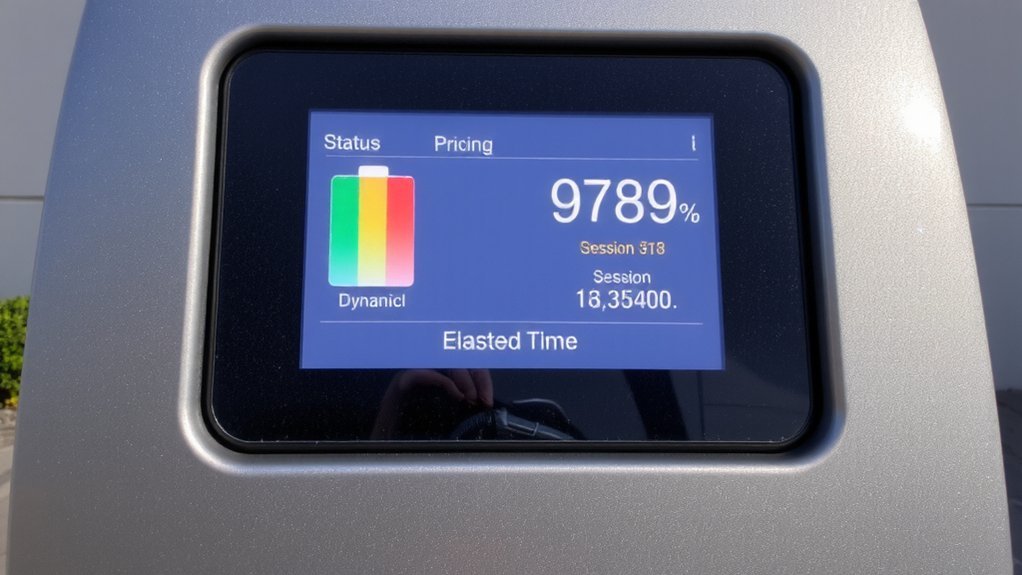
When you plug in, the screen and status lights give you a quick snapshot. A solid blue light indicates successful connection to the charger. Solid blue means you’re connected but not charging; pulsing blue indicates a scheduled, delayed start. Flashing green shows active charging; solid green means charge complete. Flashing red signals an error — stop and inspect the plug, cable and vehicle connection.
No light usually means not plugged or a charger fault; listen for audible tones that clarify issues. The display also lists state of charge, time remaining, energy delivered (kWh) and charging rate (kW) so you can monitor progress and safety. Session cost and rate types may appear; note peak or session minimums.
If problems persist, restart the session and contact support. Avoid touching damaged equipment and wait for trained help.
Using On-Screen Controls, Payments and Accessibility Options
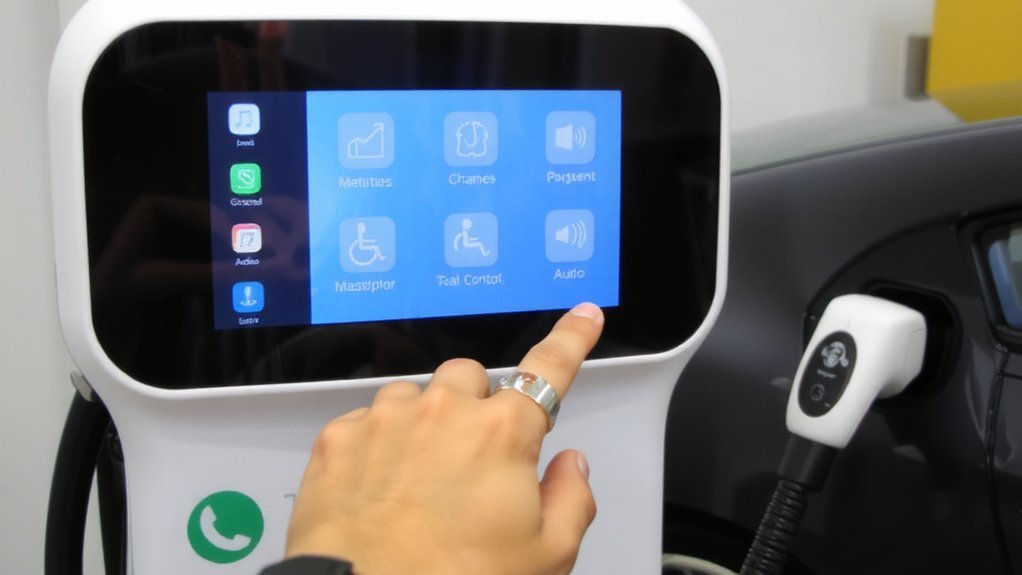

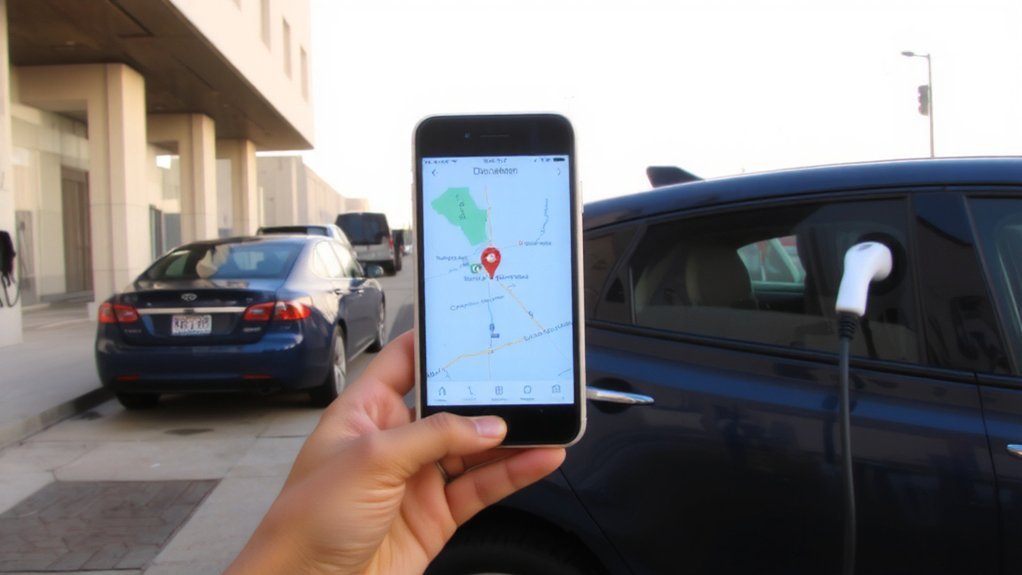
After checking lights and session metrics, you’ll use the station’s touchscreen and physical controls to start, pause or stop a session, pick a payment method, and enable accessibility features. Use swipe, tap or physical buttons to navigate menus for charging settings, payment, help and session history; multilingual options reduce misreading.
For payment, choose card reader, NFC tap-to-pay, QR code or provider app; RFID fobs log you in quickly. Confirm costs and watch for audio or visual payment confirmation before plugging in. Enable high-contrast mode, larger fonts or voice guidance if needed, and locate tactile buttons or braille labels.
Emergency stop buttons sit near the display—use them immediately if you detect hazards. Log out when finished to protect your account. Keep phone handy for receipt. Our platform benefits from 15 years of experience supporting EV charging operations.
Technical Readouts: Voltage, Current, Protocols and Error Messages
You’ll see voltage, current and power readouts on the screen because they tell you how much energy the station is delivering and whether it’s matching your vehicle’s limits. For many installations, Wall-mount units are common and typically range from 12 to 18 inches wide. The display may show supply voltage (e.g., 480V three‑phase) and the DC output the charger negotiates with your BMS; expect power to taper as SoC rises.
Current displays in amps, and together with voltage indicate kW; dual‑port units can split output between vehicles. The active connector standard (CCS or CHAdeMO) and handshake status appear so you can confirm compatibility.
If something’s wrong, clear messages like “Charging paused—check connector” appear and critical faults trigger automatic shutdown. Follow on‑screen instructions, unplug safely, and contact station support for persistent errors. Keep children and pets away from the charging area.
Smart Features, Predictive Data and Future-Ready Displays
While voltage, current and fault readouts tell you what’s happening right now, modern charging displays pair those details with smart features that let you manage cost, timing and maintenance remotely. They can also display estimated charging rates for typical equipment — for example, AC Level 2 provides approximately 25 miles of range per 1 hour of charging. You can monitor real-time energy pricing, schedule charging during off-peak hours, and get predictive completion times so you’re not stranded.
Remote apps and voice assistants let you start, stop and check sessions without touching equipment, reducing risk. AI-driven alerts warn of potential hardware issues and suggest slower rates to protect battery health in extreme temps. Touchscreen dashboards offer customizable views, historical reports, carbon metrics and exportable logs for audits.
Secure connectivity, OTA updates and open protocols guarantee displays stay safe, interoperable and ready for future upgrades. Always verify network security before using remote control.
Conclusion
You’ll approach the screen like a lighthouse at dusk, and its icons will guide you home. You’ll read state of charge, time remaining and price as if tracking a tide that lifts your range. Tap controls and payment options like steering a small boat; follow technical readouts as maps. When predictive features whisper schedules, you’ll feel confidence grow. The display becomes your compass—practical, calm, and ready for the road ahead. You trust it to guide.